
How to grant AnyDesk permissions on macOS
AnyDesk needs Screen Recording, Accessibility, and optionally Full Disk Access to work on macOS. Learn which permissions to grant, why each one matters, and how to fix a black screen or unresponsive mouse.
Why AnyDesk needs your permission
People use AnyDesk every day for practical reasons: a technician walks you through fixing a problem on your machine, you access your office computer from home, or a family member asks for help setting something up. The software lets one person see and control another computer over the internet.
macOS, however, runs strict sandbox policies that prevent any app from capturing your screen or simulating input without your explicit consent. Unlike Windows, where similar permissions are granted automatically during installation, macOS requires you to enable each one by hand. This is intentional — it protects you from malicious software doing the same thing without your knowledge.
AnyDesk needs three specific permissions to work. Without them, the remote session either fails silently or delivers a degraded experience that looks broken.
The three permissions and what breaks without them
Grant all three before starting a session. Each enables a different capability:
- Screen Recording — lets AnyDesk capture your display and stream it to the other person. Without this, the remote user sees only a black screen instead of your desktop.
- Accessibility — lets AnyDesk translate the remote user's mouse movements and keystrokes into actions on your machine. Without this, the remote user can see your screen but cannot move the cursor or type anything.
- Full Disk Access — lets AnyDesk read and write files in protected locations (Desktop, Downloads, Documents, and system directories). Without this, file transfer works only for unprotected folders. You can skip this permission if you do not plan to transfer files.
Grant permissions on macOS 13 Ventura and later
Ventura (13), Sonoma (14), and Sequoia (15) use System Settings instead of the older System Preferences. Open AnyDesk at least once before following these steps — macOS only adds an app to the permission lists after it has been launched.
- Open System Settings from the Apple menu () or the Dock.
- In the left sidebar, scroll down and click Privacy & Security.
- Click Screen Recording. Find AnyDesk in the list and toggle it ON. If AnyDesk is missing, click the + button, go to
/Applications, select AnyDesk, and click Open. - Go back to Privacy & Security and click Accessibility. Toggle AnyDesk ON.
- Go back to Privacy & Security and click Full Disk Access. Toggle AnyDesk ON if you need file transfer.
- Quit AnyDesk completely and relaunch it. macOS applies permission changes only after the app restarts.
Grant permissions on macOS 12 Monterey and older
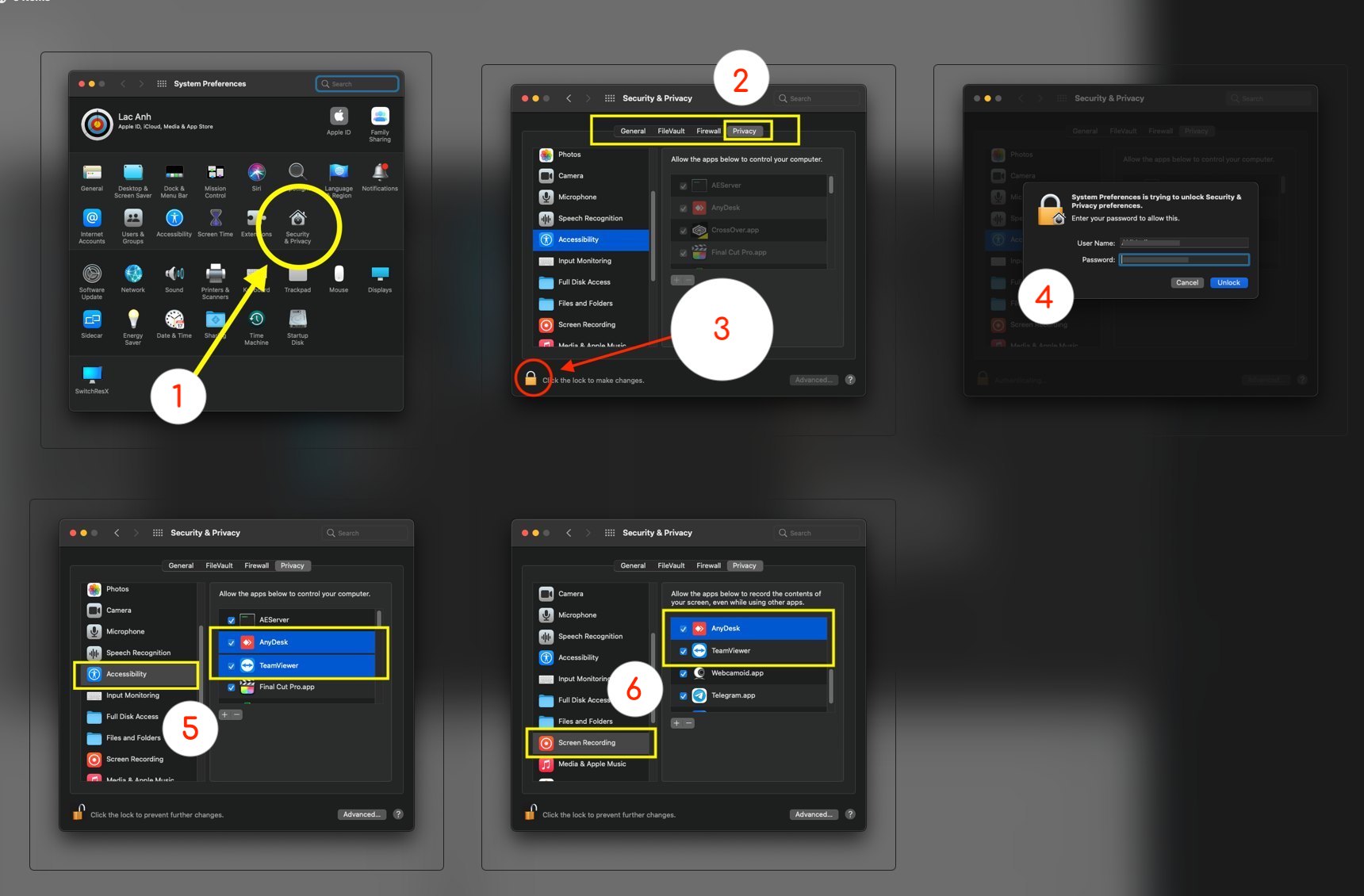
Monterey (12), Big Sur (11), and Catalina (10.15) use System Preferences. The three permissions live inside the Privacy tab of the Security & Privacy pane.
- Open System Preferences from the Apple menu ().
- Click Security & Privacy, then select the Privacy tab at the top.
- If the settings are greyed out, click the lock icon at the bottom-left and enter your administrator password to unlock.
- In the left column, click Screen Recording. Check the box next to AnyDesk.
- In the left column, click Accessibility. Check the box next to AnyDesk.
- In the left column, click Full Disk Access. Check the box next to AnyDesk if needed.
- Quit AnyDesk and relaunch it to apply the changes.
Verify the connection after granting permissions
After relaunching AnyDesk, run a quick end-to-end test:
- Ask the other person to connect to your AnyDesk address.
- Accept the incoming connection request on your side.
- Confirm the remote user can see your actual desktop — not a black or grey screen.
- Ask them to move the mouse cursor and type a character in a text field to verify Accessibility is working.
- If file transfer is needed, try sending a small test file to confirm Full Disk Access is active.
Troubleshooting common problems
- Black screen on the remote end — Screen Recording is not granted or the toggle was left OFF. Go back to Privacy & Security → Screen Recording and re-enable it, then restart AnyDesk.
- Cannot move mouse or type — Accessibility is missing. Enable the toggle under Privacy & Security → Accessibility and restart AnyDesk.
- File transfer fails or shows permission errors — Full Disk Access is not granted. Enable it under Privacy & Security → Full Disk Access.
- Toggle appears ON but nothing works — macOS did not register the change yet. Quit AnyDesk completely (right-click Dock icon → Quit, not just close the window), then reopen it.
- macOS reverted a permission after a system update — This happens occasionally. Return to Privacy & Security, verify each toggle, and restart AnyDesk.
When to grant Full Disk Access
Full Disk Access is the most powerful of the three permissions. It allows AnyDesk to read and write to any location on your drive, including protected system directories and your personal folders.
Grant it only if you genuinely need to transfer files during remote sessions — for example, if a technician needs to move a configuration file, or if you are copying project assets from your home machine to your office machine.
If you are using AnyDesk purely to view and control a screen (no file transfer), you do not need to grant Full Disk Access. Skipping it reduces the risk surface if the remote session is ever misused.
Controller vs host: who grants permissions
This is one of the most common sources of confusion. Permissions must be granted on the machine that is being accessed, not on the machine doing the controlling.
If you are the host (the person sharing their screen so someone else can help you), you need to grant Screen Recording, Accessibility, and optionally Full Disk Access on your Mac.
If you are the controller (the person connecting to someone else's machine to provide help), you generally do not need to grant these permissions on your own Mac — unless you also want to share your screen in return, in which case the same three permissions apply to your machine as well.
When both sides are on macOS and a two-way session is needed, both machines must have the relevant permissions enabled independently.
Frequently asked questions
Why does macOS require manual permission grants instead of doing it automatically during installation?
macOS enforces a sandbox model where apps cannot access sensitive resources — your screen, input devices, or files — without explicit user consent. This design prevents malware from quietly capturing your screen or logging your keystrokes. AnyDesk cannot bypass this policy, so you must approve each permission yourself. The trade-off is that you stay in control of what each app is allowed to do.
Why does the remote user see a black screen when they connect?
A black screen almost always means Screen Recording has not been granted on the host machine (the one being accessed). Go to System Settings → Privacy & Security → Screen Recording, toggle AnyDesk ON, then quit and relaunch AnyDesk. If the toggle is already ON, try turning it OFF, waiting a few seconds, turning it back ON, and restarting AnyDesk.
Is Full Disk Access required for AnyDesk to work?
No. Screen Recording and Accessibility are mandatory for a functional remote session. Full Disk Access is optional and only needed when you want to transfer files to or from protected locations such as Desktop, Documents, Downloads, or system directories. If your use case is screen sharing and remote control only, you can safely skip Full Disk Access.