
Surgical EQ with FabFilter Pro-Q 3: Dynamic Bands, Spectrum Grab, Mid/Side and EQ Match
FabFilter Pro-Q 3 is the equalizer most professionals reach for first. Learn how its 24 dynamic bands, Spectrum Grab, per-band Mid/Side processing, and EQ Match feature turn it into a complete surgical and tonal toolkit for mixing and mastering.
FabFilter Pro-Q 3 has become the default EQ in countless studios because it is fast to use and deep enough to handle almost any job. You can shape the tone of a master bus gently, or dig into a single track and fix a harsh resonance with surgical precision, all from the same window. It gives you up to 24 bands, each one static or dynamic, with a live spectrum analyzer drawn right behind the curve so you can see exactly what you are hearing.
Pro-Q 3 rolls several tools into one: a clean parametric EQ, a dynamic EQ, a linear-phase EQ, a mid/side processor, and an EQ matching tool, all sharing one interface. Get comfortable with the four features below and a single instance can replace a whole rack of plugins.
Dynamic EQ: Frequency Control That Only Acts When Needed
Any of the 24 bands can be flipped into Dynamic EQ mode. In this mode the band only moves its gain when energy at that frequency crosses a threshold, then releases when the energy drops back. Think of it as a very precise compressor or expander aimed at one frequency — it fixes things a static cut never could.
The classic case is a harsh resonance that only shows up on loud notes. A static cut dulls the sound during quiet parts too, but a dynamic band leaves the quiet material alone and only ducks the problem frequency when it spikes.
- Taming sibilance on vocals: a dynamic cut around 6–9 kHz acts as a frequency-aware de-esser.
- Controlling boomy low-mid buildup on a bass that only flares up on certain notes.
- Smoothing a ringing snare without killing its body.
- Create a band and drag its gain into a cut.
- Switch the band to Dynamic mode.
- Adjust the
thresholduntil the gain reduction meter only moves on the peaks that bother you.
Spectrum Grab and the Real-Time Analyzer
Pro-Q 3 paints a high-resolution spectrum analyzer behind the EQ curve, and Spectrum Grab turns that display into something you can grab and pull. Hover over a peak in the live spectrum and the plugin lets you seize that exact frequency and drag it down, creating a band right where the energy sits. It labels the most prominent peaks so you can spot a resonance by ear and by eye at the same time.
This is the quickest way to hunt down a problem frequency. Instead of the old "boost a narrow band, sweep until it screams, then cut" routine, you watch for the peak that jumps out during the harsh moment, grab it, and pull it down a couple of decibels. The analyzer can show pre-EQ, post-EQ, or both, and you can freeze it to study a transient up close.
Per-Band Mid/Side, Left/Right and Stereo Placement
Every band in Pro-Q 3 can work on Stereo, Left, Right, Mid, or Side independently. This per-band freedom is one of the plugin's most powerful and most overlooked features — it opens up stereo moves that a single global switch could never make.
On a master bus, setting a low band to Mid-only lets you tighten or boost the bass in the center without touching the width of higher elements. A Side-only high-shelf adds air and width to reverb tails while leaving the mono center alone, keeping the mix translating on phones and club systems.
The same idea works on individual tracks. You can notch the Side channel of a wide synth to clear room for a centered vocal, or roll off the low end of the Side content to keep the sub mono and solid. Because the choice is per band, one Pro-Q 3 can shape tone in stereo, cut surgically in mid, and add width in side — all at once.
EQ Match: Borrowing a Tone
EQ Match analyzes the average spectrum of a reference and the spectrum of your own track, then builds a curve that nudges your track toward the reference balance. Capture the spectrum of a commercial track you love, capture your own mix, and Pro-Q 3 draws a matching curve you can then dial back to taste.
For mastering, and for matching the tone of two songs on the same EP or album, EQ Match is a real time saver. It gets disparate mixes into the same tonal neighborhood quickly, so you can finish the job with your own judgment.
Workflow Tips That Make Pro-Q 3 Faster
A few habits make a big difference to speed.
- Linear-phase mode for mastering when phase coherence matters; natural-phase for tracking and mixing where low latency and analog-like behavior feel better.
- Auto Gain keeps perceived loudness steady while you audition cuts and boosts, so louder does not trick you into thinking better.
- EQ band locking plus the full-screen, resizable interface for detailed work on a master.
- Use the high-pass and low-pass filters (slopes up to
96 dB/oct) to clean the extremes of every track before reaching for surgical bands. - Hold a modifier key and double-click to drop a band exactly where you click.
- Use per-band Solo (the "Solo Band" headphone listen) to hear only the range a band covers while you sweep — makes finding resonances quick and certain.
- For the fastest resonance fix: use Spectrum Grab to pull the peak down, then switch the band to Dynamic so it only acts on the spikes.
Frequently asked questions
When should I use a dynamic band instead of a static cut in Pro-Q 3?
Use a dynamic band when the problem only shows up some of the time — a resonance that rings on loud notes, sibilance that spikes on certain words, or low-mid buildup that comes and goes. A static cut would dull the sound even when the problem is absent. A dynamic band leaves quiet parts alone and only reduces gain when energy crosses the <code>threshold</code>, keeping the result transparent.
Does the spectrum analyzer mean I should EQ with my eyes?
No. The analyzer and Spectrum Grab are there to confirm and locate what your ears already notice, not to give you a flat curve to aim at. A spectrum that looks uneven can sound musical, and a flat-looking one can sound lifeless. Use the display to pinpoint a problem you have heard, then make the call with your ears.
What is per-band Mid/Side processing good for?
It lets you EQ the center and the sides of the stereo field separately inside a single instance. Common uses: keep the low end mono and tight by working the Mid channel only, add air and width with a Side-only high-shelf, and notch wide elements in the Side channel to clear room for a centered vocal. Because the choice is per band, one Pro-Q 3 can make several stereo-aware moves at once.
Is EQ Match a one-click mastering solution?
No. EQ Match is best as a diagnostic starting point. It compares your track to a reference and draws a curve — useful for revealing tonal differences and getting songs into the same neighborhood. Applied at full strength it usually sounds artificial because it ignores arrangement and instrumentation. Pull the match back to 25–50%, smooth it, and finish with your own judgment.
Recommended Related Products
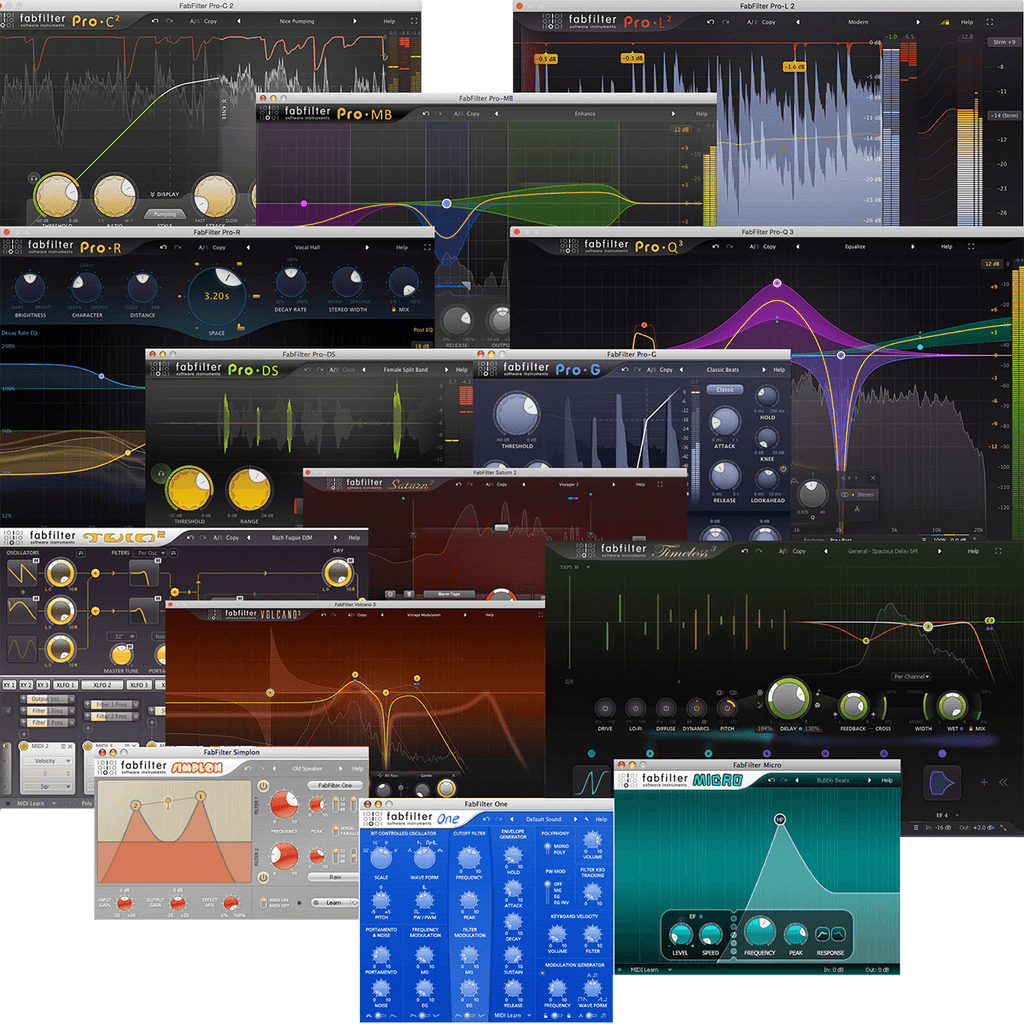
FabFilter Total Bundle 2024
Mastering-grade audio effect plugins including Pro-Q 3 and Pro-C 2.