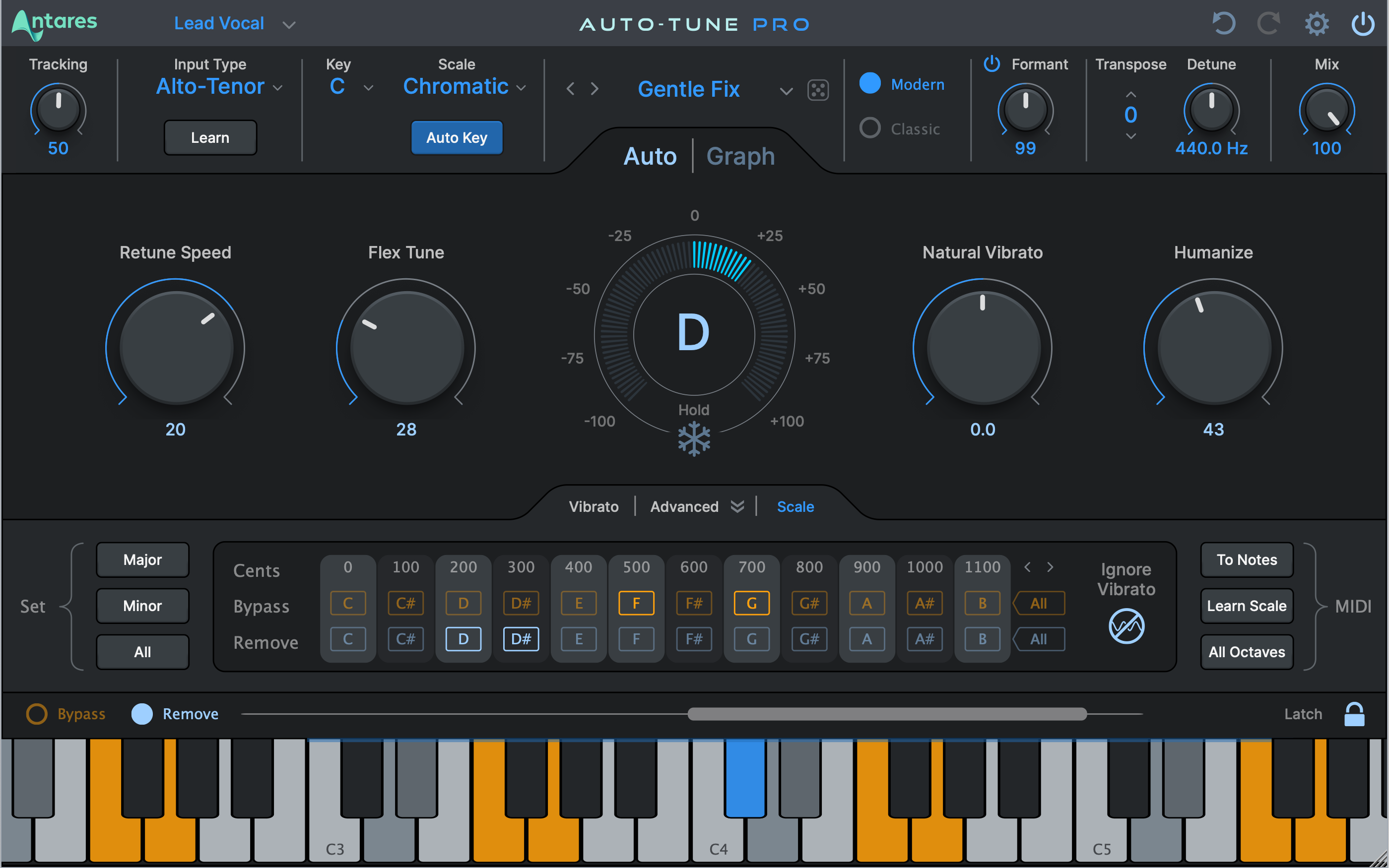
Radio-Ready Vocals with Antares Auto-Tune Pro 11: Auto vs Graph Mode
Auto-Tune Pro 11 is the studio standard for pitch correction, but most people only scratch the surface. Here is how to use Auto Mode, Graph Mode, Retune Speed, Humanize and Flex-Tune to get vocals that sound professional, not robotic.
Antares Auto-Tune Pro 11 defined modern pitch correction, and you still hear it on most commercial pop, R&B and hip-hop records. The tricky part is that the exact same plugin can make a vocal sound completely natural or aggressively robotic. It all comes down to a handful of settings. Knowing what each control does is the difference between a polished, radio-ready vocal and an obvious, distracting effect.
Auto-Tune Pro 11 works in two modes. Auto Mode handles fast, real-time correction. Graph Mode is for detailed, note-by-note editing. Most pro-level results come from knowing when to use each one, and from dialing in the four core controls that shape the character of the correction.
Auto Mode vs Graph Mode
Auto Mode is the heart of Auto-Tune. It corrects pitch in real time with almost no latency, pulling every incoming note toward the nearest pitch in the scale you choose. Because it works instantly, Auto Mode is perfect for tracking, live performance and quick studio sessions where you want correction on the fly. It is also home to the famous hard-tune effect, which you get by pushing the correction to its fastest, most quantized setting.
Graph Mode does the opposite. Instead of correcting everything automatically, it shows you the performance as pitch curves on a graph so you can edit each note by hand. You can redraw a pitch curve, fix one flat syllable, shape the tail of a sustained note, and leave the rest of the take alone. Graph Mode is the surgical option, and it is what engineers reach for when they want correction nobody can hear.
- Auto Mode: real-time, scale-based, great for tracking and the hard-tune effect.
- Graph Mode: manual, note-by-note, great for transparent surgical correction.
- Use Auto-Key to detect the song key and load it automatically into either mode.
- Many engineers track in Auto Mode, then switch to Graph Mode for the final polish.
The four controls that shape the sound
Auto-Tune Pro 11 is built around what many people call the "Big Four": Retune Speed, Flex-Tune, Humanize and Natural Vibrato. These four knobs decide whether your correction stays invisible or becomes obvious.
Retune Speed sets how quickly a note snaps to its target pitch. Fast values (0 to a few milliseconds) give you the instant, quantized robotic sound. Slower values (around 20 to 50 ms) let natural pitch movement and vibrato pass through before the correction settles, which is what makes a vocal sound tuned but still human.
Flex-Tune only corrects notes that are already close to the target pitch. It leaves expressive bends, scoops and slides untouched until the singer lands on the note, so the natural attack and phrasing of the performance survive instead of getting clamped to the grid.
Humanize delays the onset of correction on long sustained notes so they do not feel over-tuned and synthetic. Natural Vibrato lets you reduce, keep or exaggerate the singer's own vibrato without the correction engine flattening it.
Settings for a transparent, natural vocal
For a corrected-but-invisible pop or R&B vocal, Auto Mode with Retune Speed in the slow-to-medium range is the starting point. Pair it with Flex-Tune and Humanize to keep expression intact.
- Load the correct song key using Auto-Key, then enable Auto Mode.
- Set
Retune Speedto 20–40 ms so natural pitch movement and vibrato survive before correction settles. - Dial in moderate
Flex-Tuneso scoops and slides into notes stay expressive. - Add a touch of
Humanizeso long sustained notes do not lock too hard to the grid.
Retune Speed faster across the whole take. Switch to Graph Mode and fix those notes individually — the rest of the performance stays natural.Settings for the hard-tune effect
The hard-tune sound in hip-hop and modern pop is a deliberate stylistic choice: you want the correction heard. Every note must snap instantly and completely to the grid.
- Stay in Auto Mode.
- Set
Retune Speedto 0. - Turn
Flex-Tuneall the way down. - Switch
Humanizeoff.
Working inside your DAW
Auto-Tune Pro 11 supports ARA2 integration in hosts like Logic Pro, Studio One and Pro Tools, so it works directly on rendered audio in the timeline with no separate bounce step. That makes Graph Mode editing much faster, because the plugin already has the full performance loaded and analyzed.
A common pro approach is to run Auto Mode as a real-time insert while tracking so the singer hears a corrected vocal in their headphones, then commit the comped take and do the detailed work in Graph Mode during the mix. You get the speed of real-time correction where you need it and the precision of manual editing where it counts.
Frequently asked questions
What Retune Speed should I use for a natural vocal?
A <code>Retune Speed</code> of roughly 20 to 50 ms is the right starting range for transparent correction. At those values the natural pitch movement and vibrato of the performance pass through before correction settles, so listeners hear a tuned vocal rather than an obviously processed one. The robotic effect only appears when Retune Speed sits close to zero.
What is the difference between Flex-Tune and Humanize?
<code>Flex-Tune</code> controls how much correction hits notes that are off pitch versus notes near the target, preserving expressive bends and scoops between notes. <code>Humanize</code> specifically delays the onset of correction on long sustained notes so they do not sound over-tuned. They solve different problems and often work together.
Should I use Auto Mode or Graph Mode?
Use Auto Mode for real-time correction during tracking and for the hard-tune effect, since it works instantly with low latency. Use Graph Mode when you want transparent, surgical correction on a finished take, because you can edit individual notes and pitch curves by hand without touching the rest of the performance.
Why does my hard-tune effect sound out of tune?
Hard-tune only works when notes snap to the correct pitches, so the scale or key must be exactly right. Use <strong>Auto-Key</strong> to detect the song key, or set it by hand, and restrict the allowed notes through the keyboard input so the vocal can only land on pitches that fit the song.