Editing Pitch and Timing in Celemony Melodyne 5: A Practical Tutorial
Melodyne 5 turns audio into editable note objects called blobs, giving you note-level control over pitch, timing, vibrato and even individual notes inside a chord. Here is how to use DNA, blob editing and the chord track in real projects.
Celemony Melodyne 5 is the most precise pitch and timing editor a producer can own, and it works on a completely different principle from real-time pitch correction. Rather than nudging notes as they play, Melodyne analyzes the recording, splits it into individual note objects, and lets you reshape each one with full visual control. That is exactly why it became the standard tool for detailed vocal repair and creative re-harmonization.
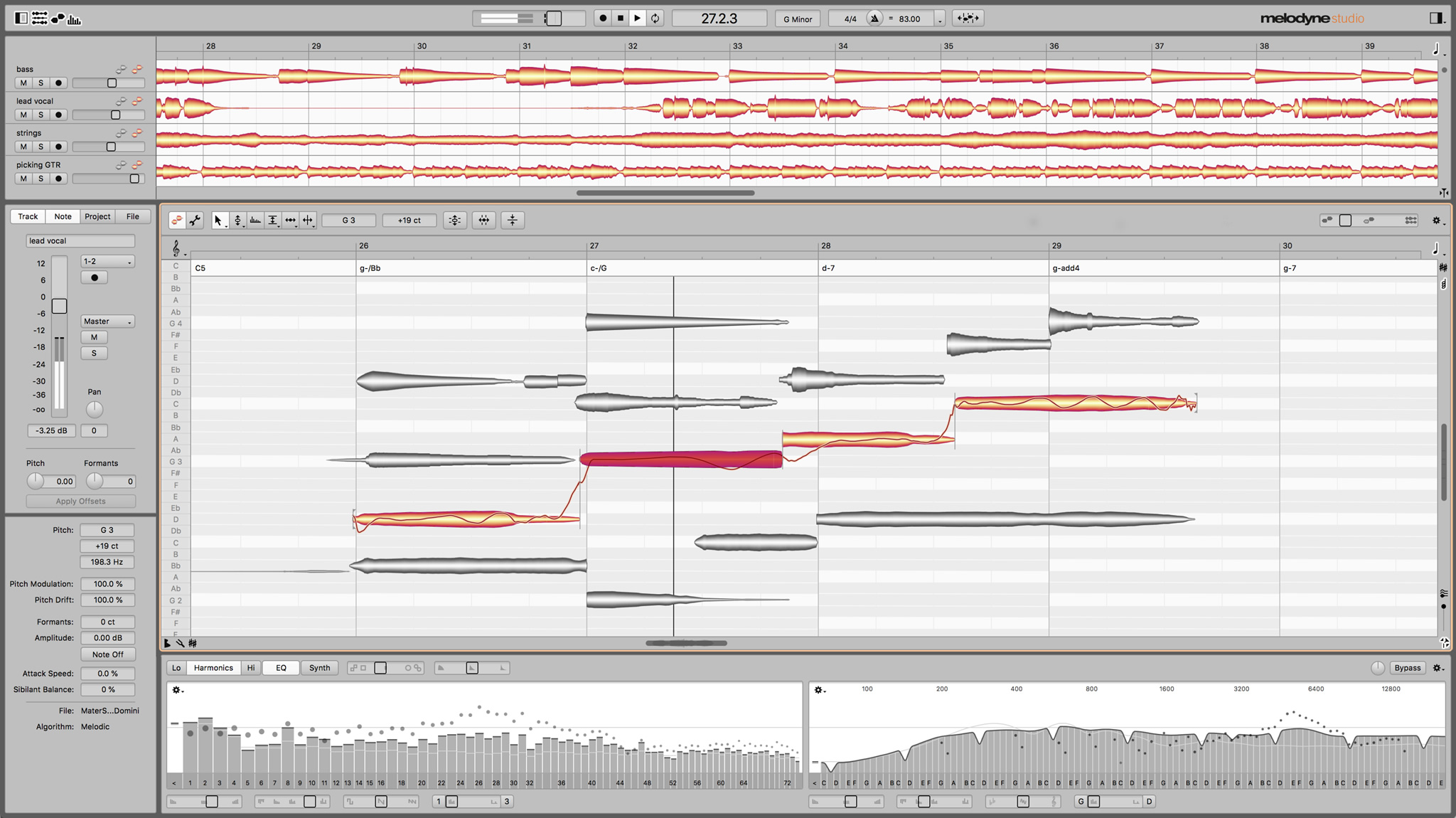
In Melodyne, every note shows up as a shape called a "blob". By dragging and reshaping these blobs you can change pitch, position in time, length, vibrato, volume, sibilants and formants. This tutorial walks through the core editing workflows so you can fix problem notes, tighten timing, and even rework chords.
Getting audio into Melodyne
Melodyne reads audio in one of two ways. With ARA integration in hosts like Studio One, Logic Pro, Cubase and Pro Tools, you just insert Melodyne on a track and it transfers and analyzes the audio instantly — no separate recording step needed. Without ARA, you play the audio through Melodyne once so it can capture and analyze the performance, a step called transferring.
As it analyzes, Melodyne picks an algorithm based on the material. Monophonic material like a lead vocal uses the Melodic algorithm. Chordal material like guitar or piano uses the Polyphonic algorithm, which is what unlocks Direct Note Access. Percussive material uses the Percussive algorithm. You can switch the algorithm by hand if Melodyne guesses wrong, which happens on breathy or noisy recordings.
- Insert Melodyne on your track. With ARA, it transfers and analyzes audio automatically — you are done.
- Without ARA: press Play in your DAW while Melodyne is open to transfer the audio through it.
- After transfer, check which algorithm Melodyne chose (shown in the toolbar). Switch to
Polyphonicfor chords/guitar/piano,Melodicfor lead vocals,Percussivefor drums. - Begin editing blobs in the Note Editor.
DNA Direct Note Access
Direct Note Access (DNA) is the technology that made Melodyne famous. It lets you identify and edit individual notes inside polyphonic material separately. With DNA you can open a chord recorded on a piano or an acoustic guitar and move one note inside that chord without touching the others.
No real-time pitch tool can do this. It means you can fix a wrong note in a recorded chord, turn a minor chord into a major chord, or adapt a sample so it fits the harmony of your project. When the Polyphonic algorithm is active, every time several notes sound together the blobs stack vertically at their respective pitches, so a chord looks like a small column of blobs that you can edit independently.
Editing pitch with blobs
The Main Tool is where most pitch work happens. Grab a blob and drag it vertically to move it to a new pitch; Melodyne snaps to the nearest semitone by default, and you can hold a modifier key to move freely for fine adjustments. The pitch grid on the left shows you which notes you are moving to.
For finer control, Melodyne gives you dedicated pitch tools. The Pitch Center tool moves the average pitch of a note, the Pitch Modulation tool increases or reduces the depth of vibrato, and the Pitch Drift tool smooths or corrects the way pitch wanders across a sustained note. Reaching for these instead of a blanket correction keeps the natural character of the performance while you fix the specific issue.
- Main Tool: move a blob up or down to change its pitch.
- Pitch Center: shift the average pitch of a note without flattening its movement.
- Pitch Modulation: reduce or exaggerate vibrato depth.
- Pitch Drift: smooth pitch that drifts across long sustained notes.
Editing timing and length
The Main Tool handles timing too. Drag a blob left or right to move it earlier or later, which is how you tighten a vocal that rushes or drags against the beat. Grab the edge of a blob to change its length, handy for shortening a note that runs into the next phrase or stretching a note that got cut short.
For musical timing you can quantize note positions to the project grid, but it is usually better to nudge notes by ear so the performance keeps its natural feel. Melodyne also lets you edit the timing inside a single note with the Time tools, which is great for fixing a consonant that lands slightly off without disturbing the rest of the syllable.
The chord track and harmony
Melodyne 5 introduced a chord track that links to the pitch grid in the Note Editor. As you lay out the chords of your song on the chord track, Melodyne shows which pitches fit the current chord, so you can adapt notes to the harmony quickly and with confidence. Working with harmony becomes far clearer, because you can see at a glance whether a note fits the chord underneath it.
This really shines when you build harmony parts or fix background vocals. You can move notes to chord tones with the harmony right in front of you, instead of guessing which pitch is correct. Paired with DNA, the chord track turns Melodyne 5 into a complete environment for reworking the harmonic content of a recording, not just correcting tuning.
Frequently asked questions
What is a blob in Melodyne?
A blob is the visual shape Melodyne uses to represent a single note after it analyzes your audio. By dragging and reshaping blobs you can change a note's pitch, timing, length, vibrato, volume and formants. Blobs are how Melodyne turns a recording into something you can edit note by note.
Can Melodyne edit individual notes inside a chord?
Yes — that is what <strong>Direct Note Access (DNA)</strong> does. With the <code>Polyphonic</code> algorithm active, Melodyne separates a chord into individual note objects stacked vertically, so you can move one note inside a guitar or piano chord without affecting the others. DNA is available in the Editor and Studio editions, not in Essential.
How do I fix timing without making the vocal sound robotic?
Use the <strong>Main Tool</strong> to nudge blobs slightly earlier or later by ear instead of hard-quantizing everything to the grid. Small manual moves keep the natural feel of the performance while tightening the parts that rush or drag. You can also edit the timing inside a single note to fix a misplaced consonant without disturbing the whole syllable.
Do I need ARA to use Melodyne?
No, but <strong>ARA</strong> makes the workflow much faster. With ARA integration in hosts like <strong>Studio One</strong>, <strong>Logic Pro</strong> and <strong>Cubase</strong>, Melodyne transfers and analyzes audio automatically the moment you insert it. Without ARA you play the audio through Melodyne once to transfer it, which works fine but adds an extra step.